
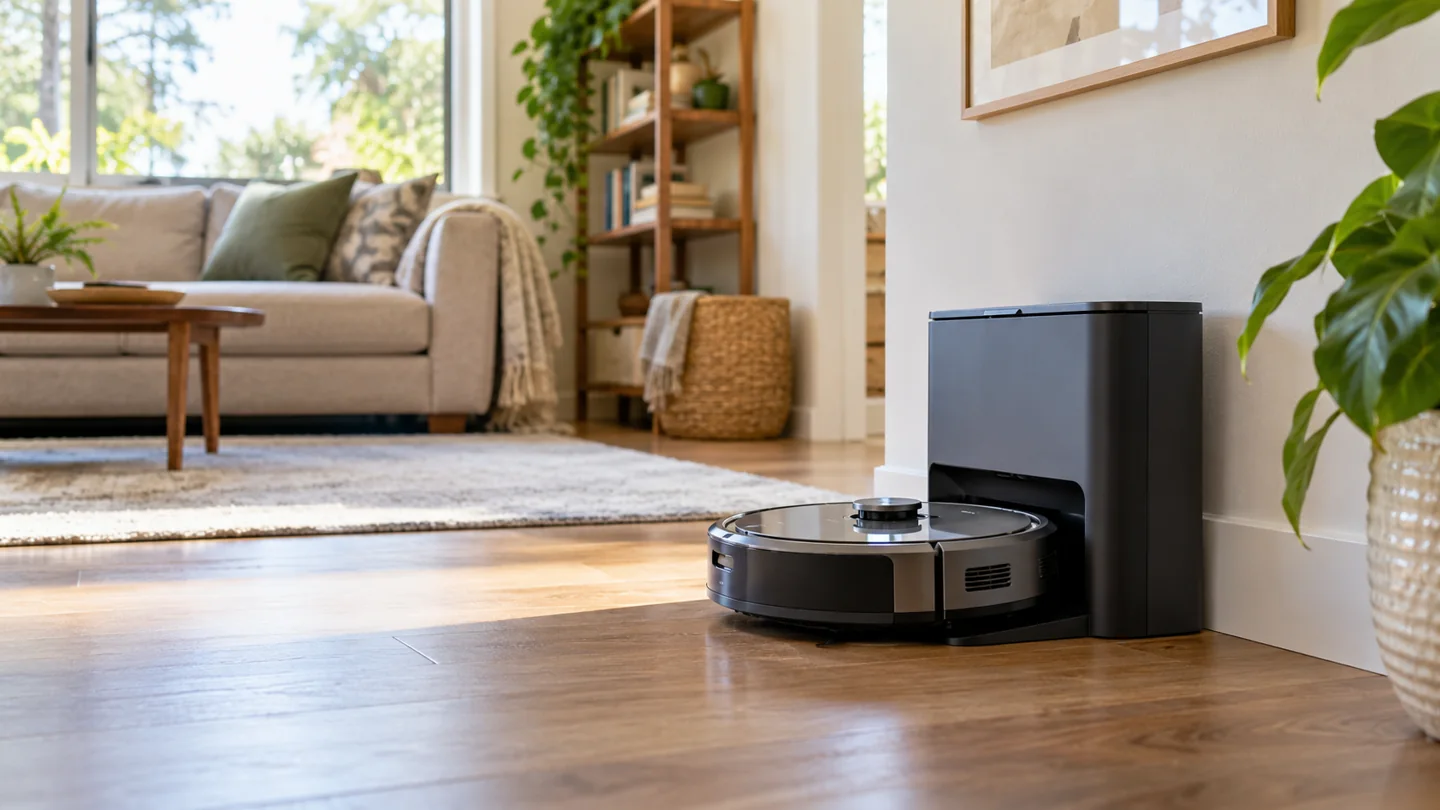
Robot vacuums stop according to their programmed cleaning behavior, selected task, battery state, user controls, and error conditions. A mapped robot may end a job after covering the requested accessible area. Another model may use a different coverage routine or return when its battery reaches a threshold. A docked robot has not necessarily proved that every part of the floor is clean.
To understand your machine, look at the job status rather than its location alone. “Completed,” “paused,” “charging to resume,” “cancelled,” and an error message describe different outcomes. The available labels and behavior depend on the model and app.
The main reasons a robot ends or pauses a run
| Reason | What the robot may do | What to check |
|---|---|---|
| Requested cleaning task completed | Return to the dock or end the programmed routine | Selected rooms, pass count, and whether intended areas were accessible |
| Battery return threshold reached | Travel back to charge, or stop if it cannot reach the dock | Whether the model can resume the unfinished job |
| User command or schedule-related control | Pause, cancel, return, or wait as supported | App history, physical controls, and configured settings |
| Obstacle, tangle, or sensor condition | Change direction, pause, or report an error | The exact message and location |
| Bin, dock, or maintenance condition | Pause, empty, or request attention on supported models | Component condition and the matching manual |
Mapped coverage: ending the requested route
A robot with suitable mapping can track the area it intends to cover and the route it has traveled. Depending on the model, you may select rooms, zones, or multiple passes. Completion means the robot has reached its task-ending criteria, not that it has inspected every fiber for remaining debris.
Closed doors, inaccessible furniture gaps, no-go zones, and obstacles can limit the area available. If a bedroom door was closed throughout the run, a completed status does not mean that room was cleaned. Check the requested task and actual access.
iRobot’s explanation of cleaning methods illustrates how navigation and task behavior differ across robot families. Do not infer the presence of a camera, editable map, or a particular completion method from the brand name alone.
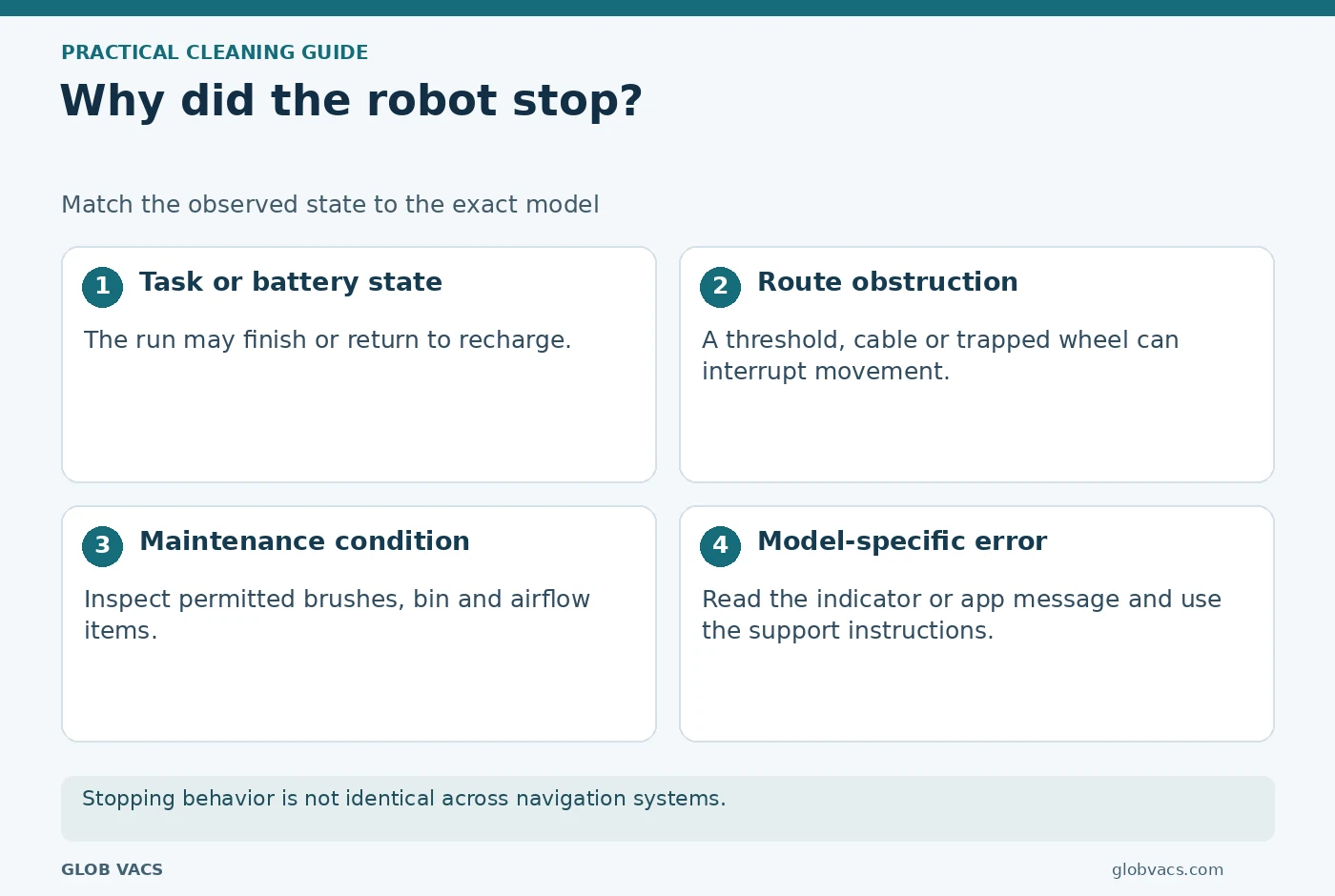
Reactive coverage: a different way to decide the run
A reactive robot can use combinations of direction changes, edge following, obstacle responses, and programmed coverage behavior without offering an editable room map. It may revisit an area several times. Its end-of-run behavior can be tied to battery state or another documented routine.
Do not say every basic robot simply runs on a fixed timer, or every connected robot maps the floor. Read the exact manual. An app may provide start, stop, and scheduling controls without room-by-room navigation.
Our guide to robot-vacuum systems explains the distinction between reactive navigation, systematic movement, and saved maps.
Battery thresholds can interrupt an unfinished task
A robot generally needs energy to return to its charger, so its return decision is not necessarily the point at which the battery is completely empty. The displayed percentage, travel conditions, and control logic vary. Do not try to force it to continue until it stops dead.
Some models can charge and resume an unfinished job. Others end the run or need a different command. Even where resume is supported, moving the robot, cancelling the job, or changing settings can affect the behavior under the manual’s rules.
iRobot’s Recharge and Resume guidance describes that supported behavior and distinguishes it from normal job completion. Check the model rather than assuming every return to the dock means “done.”
Dirt detection does not prove a spotless floor
Some robots change their cleaning behavior when a supported sensor detects more debris or another relevant condition. That feature may add attention to a patch, but it is not the same as a laboratory verification that every particle, stain, or microorganism has been removed.
Other robots do not have the same sensing feature. Do not assume the machine stops because it has measured the whole house as clean. Inspect the areas that matter to you, especially edges, thick rugs, and places the robot cannot reach.
Cleaning, stain removal, and disinfection are separate tasks. A dry vacuum can collect suitable loose debris without establishing that a surface is sanitized.
A scheduled start is not always a scheduled finish
Many schedules specify when a job begins. They do not necessarily mean the robot must stop at a particular clock time. Other settings may limit noise, charging, or resuming behavior. Read how your specific product handles these options.
For example, a task can continue longer than expected because it includes repeated passes or a charging pause. An app can also cancel or pause a job through a user command. Check the event history before attributing the result to a dirty sensor.
For planning, see how often to run a robot vacuum and how long a cleaning job takes. Frequency, active cleaning time, and total elapsed duration are different decisions.
How to tell completion from a fault
- Read the reported status. Record any code, spoken message, or light pattern before restarting.
- Check the task request. Confirm selected rooms, zones, passes, and any cancelled or paused command.
- Look at the route. Identify closed doors, blocked areas, or a repeated stopping location.
- Check charge behavior. Determine whether the robot is waiting to resume or has ended the task.
- Inspect the result. Look for remaining debris and areas that were never reached.
- Use model-specific troubleshooting. Resolve a recurring error rather than clearing it repeatedly.
If the robot repeatedly stops in the same place or reports a fault, use unexpected stopping troubleshooting. Do not cover sensors or force wheels to make it continue.
Help the robot finish a useful job
Prepare a compatible route, keep the dock accessible, maintain the bin and intake, and remove tangles using the manual’s procedure. A robot that is repeatedly rescued may report several short tasks instead of completing the route you intended.
For mapped models, keep room boundaries current and follow the documented process after major layout changes. For reactive models, use compatible physical boundaries where appropriate. Do not assume every model can be sent to a named room.
Our robot maintenance guide covers the component checks. Use the correct charging and filter instructions rather than applying a generic reset to every interruption.
Finishing a cleaning job and detecting a stair edge are separate functions. Read how Roomba cliff sensors relate to stairs before relying on them near a drop.
Frequently asked questions
Does returning to the dock mean the floor is clean?
Not necessarily. The robot may be charging, responding to a command, or ending a limited task. Check status, requested area, and actual results.
Does every robot stop after a fixed number of minutes?
No. Completion logic varies by model and task. Do not generalize a timer-based or battery-based behavior to every robot.
Why did it stop with part of the room untouched?
Check access, boundaries, job selection, charge status, and errors. A blocked route or incomplete task needs a different response from a normal completed run.
Can I make it ignore a cliff warning?
Do not bypass or cover safety sensors. Follow manufacturer guidance for the surface and protect unsafe boundaries as required. Use another cleaning method where necessary.
Read the status, then judge the result
The robot’s stopping decision follows its programming and available information. Use that status to understand the run, and use your own inspection to decide whether the floor meets your cleaning needs.
Further reading
How To Use A Car Vacuum Cleaner At Home?

Katy James contributes vacuum-cleaner explainers and practical cleaning guidance at GlobVacs. Her published topics include robot-vacuum operation and vacuum airflow. Read her author profile and selected articles.